Restoring my Childhood Family Computer Part 4: Emulation

Wow has it really been over a year since I posted an update on this project? In Part 3 I powered on the machine with the new motherboard. It played the Macintosh startup chime followed by a Chime of Death and did not boot.
Before continuing with repairing the hardware I wanted to try taking an image of the hard drive in case I made a mistake and damage it.
Here’s the drive:
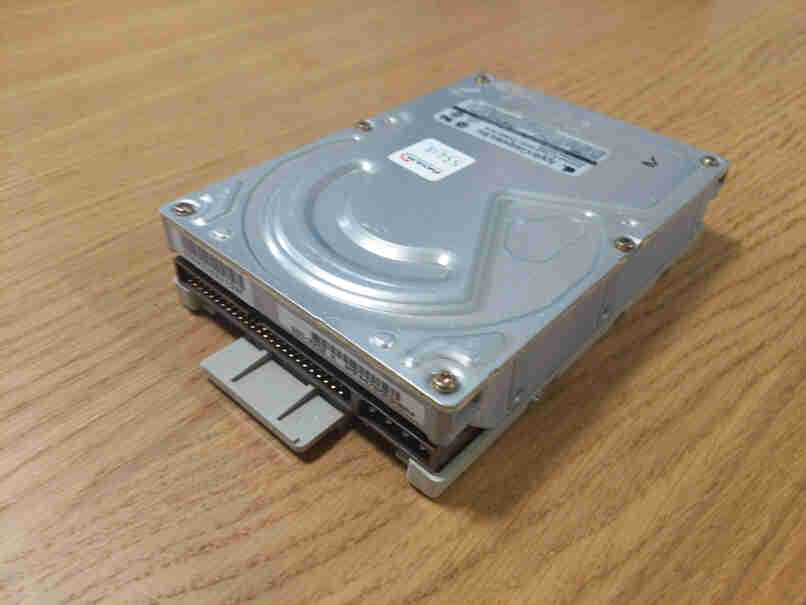
The drive has a SCSI port, so to attach it to a modern computer I needed an adapter. The only adapter I could find on ebay was this PCI card:
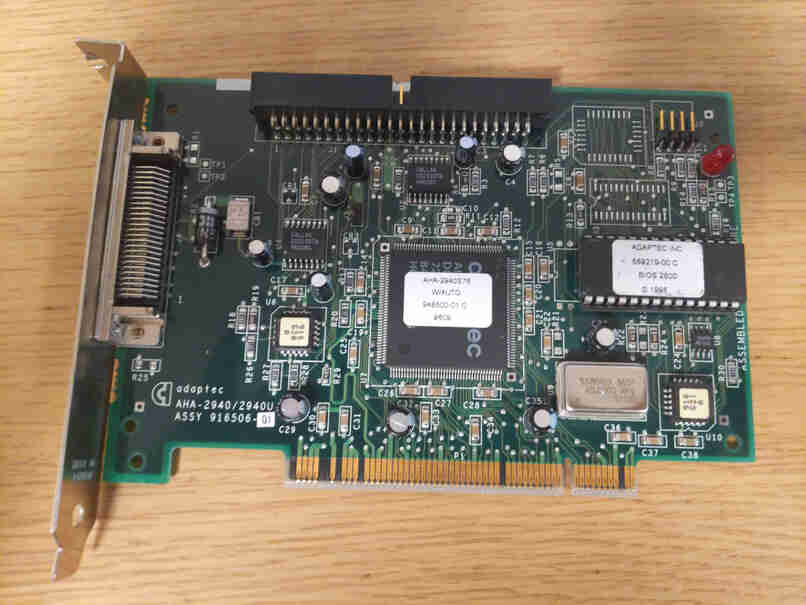
PCI is also quite an old connector and none of my computers had a PCI slot. I went and bought and old-ish second-hand PC on ebay with a PCI slot.
Then I chickened out and contacted a local data recovery company. I brought them the drive and waited.
After not hearing back for a few weeks I called them and it turned out they didn’t have the right adapter, so I lent them mine and waited again.
After about a month of delays I gave up waiting, took back my drive and adapter, and attempted the recovery myself.
I verified that Linux could recognize the SCSI adapter in my second-hand computer. I powered down the machine, attached the SCSI ribbon cable and the Molex power cable.
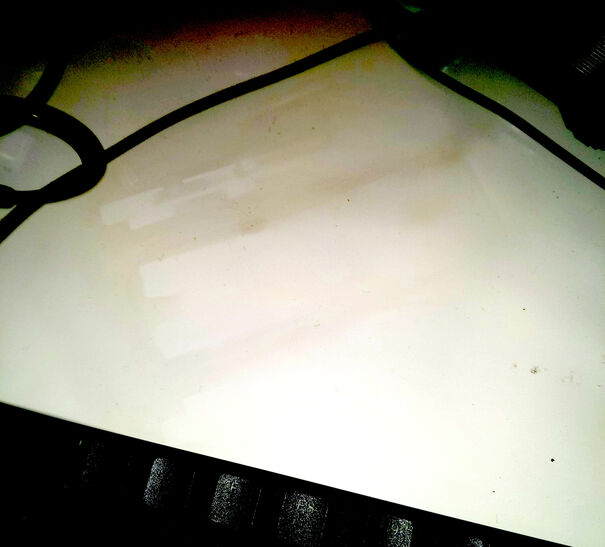
When I turned the machine back on the drive lit up with sparks and released some purple smoke.
It left this faint shadow on my desk:
I still don’t know what went wrong. I have a spare SCSI hard drive but I’m not about to waste it by plugging it into a faulty adapter and destroying it too. My best theory is that the drive was already damaged. The Macintosh had been left outside in a tropical location for several years. It’s possible that the drive’s PCB had rusted and when power was applied it shorted out or a damaged part overheated. If this is the case then it’s odd that there were no fireworks when I tried powering on the Macintosh with the hard drive still attached, but maybe its power supply wasn’t powerful enough to do this sort of damage? Perhaps that explains the strange noises I mentioned in the previous post.
Once the smoke cleared it occurred to me that while the drive’s PCB was fried, it’s possible that the disk inside was undamaged. I contacted a second, better data recovery company, told them the story, and brought them the drive. They had a bunch of working SCSI drive PCBs and they could swap the dead one for a live one and attempt to recover the data.
I committed to paying something like AUD $1000 regardless of the outcome (I really wanted this data!) and nervously waited for several weeks.
In the end they were able to recover my data. Normally they make you pay for an external hard drive with the recovered files on it but this is a 250mb hard drive from 1994 so they just sent me a link to a google drive.
I loaded the disk image into the Basilisk II Macintosh emulator and:
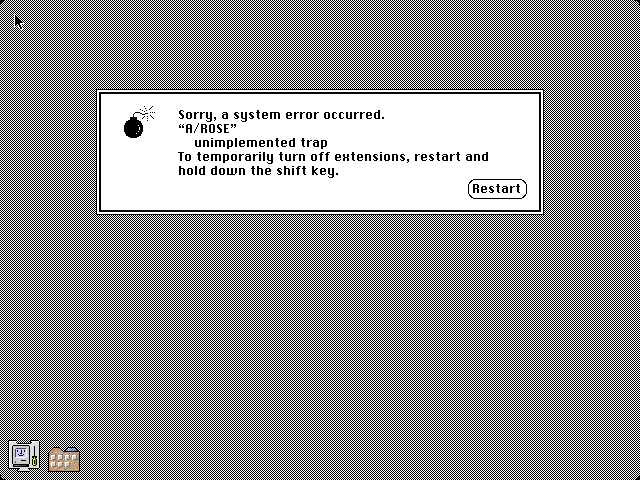
Honestly that is a better outcome than I was expecting. It’s kinda surreal that a disk image from a real hard drive can just boot up in an emulator like this.
Clicking the “Restart” button in the error window just causes the window to pop up again, so it seemed like the machine was stuck in a loop, but for some reason I insisted on pressing “Restart” probably 100 times (sometimes with the shift key down, sometimes without, not sure if it matters), and eventually the machine booted successfully:
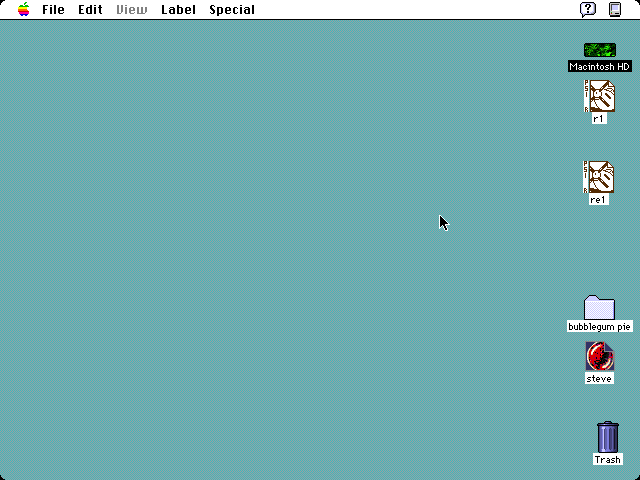
And wow! I’m still amazed that this worked, and the data had just been sitting on the disk for years. I’ve always associated this computer with my dad because he was the main person who used it. He died when I was a kid and it was an emotional moment seeing this machine running again, even if it’s just running virtually (for now!).
The “steve” file on the desktop is a Kings Quest 7 save file but I’m not sure if it’s mine or my dad’s because his name was also Steve.
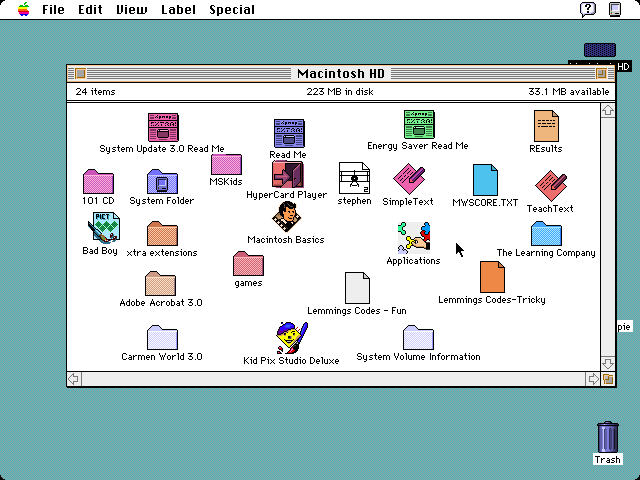
I remember the day when I learnt that you could colour-code icons and spent hours traversing the filesystem, colouring everything.
Also what’s that “Bad Boy” file? It gave an error when opening and I didn’t think much of it until I sat down to write this post, but more on that below.
Here’s our collection of games. Most of these are from a demo disk. More colour-coding evident here.
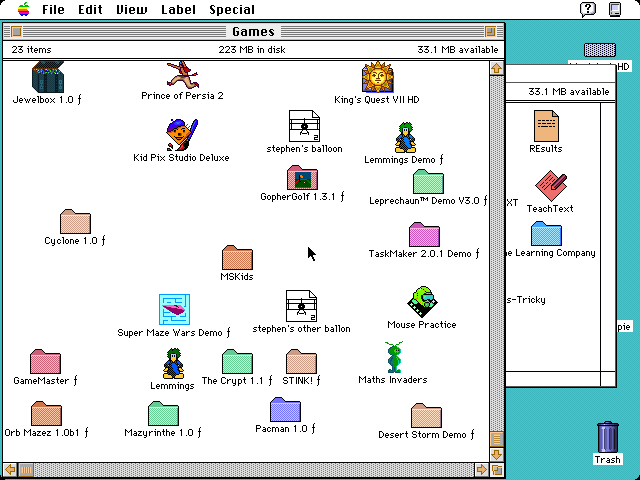
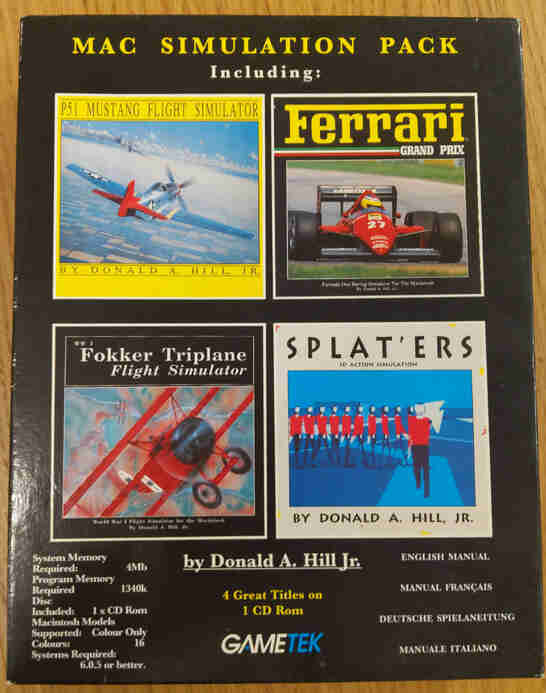
Stephen’s various balloons in the above screenshot are save files from the Fokker Triplane Flight Simulator, the game on the bottom-left of the box pictured below:
Speaking of balloons, the question mark in a speech bubble at the top-right of the screen enters “Balloon Help” mode where mousing over any entity displays an explanation of that entity.
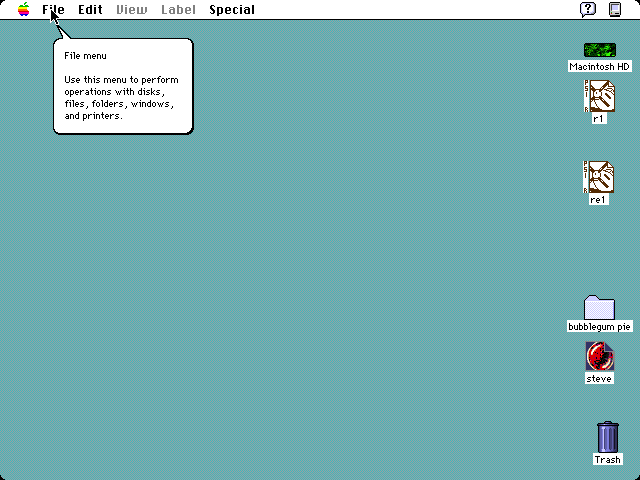
I’m tickled because it explains concepts that feel so obvious, but this was a time when the visual language of a windowed operating system shell was unfamiliar to most people.
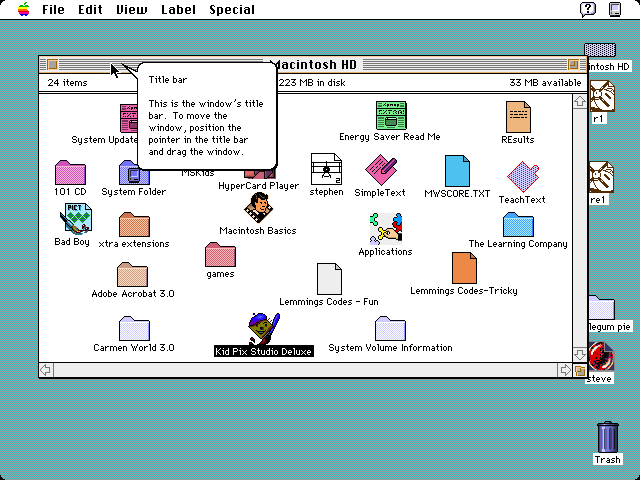
The help bubble is such a neat idea and it’s a shame it’s not common on modern OSes. Searching a manual or the web requires naming the thing you want help about, and how are users supposed to know it’s called a “Title bar”?
My dad used this computer for his work as a school teacher, and I was in his grade 2 class. The disk had a bunch of my old creative writing assignments on it. It also has assignments from all my classmates, which I won’t share here, but if you were in Mr Sherratt’s grade 2 class in 1999 at Cardwell State School, and want some of your old writing, get in touch (also hello, it’s been a while!).
Here’s the first few pages of a story I found on the disk, written by me:
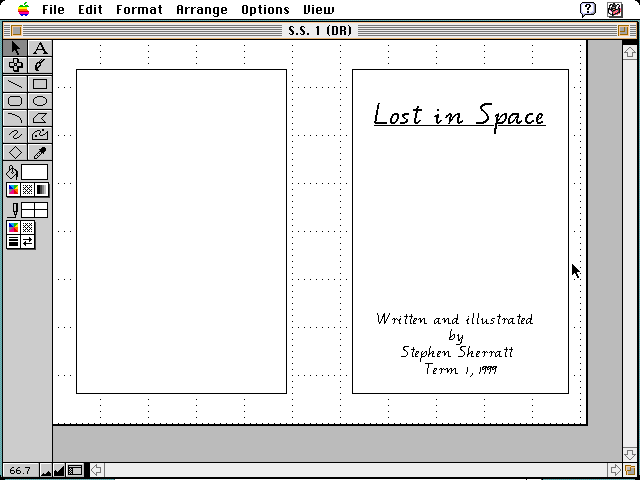
The font is called “Beginners Alphabet” and it’s always italicized. I remember initially being taught to write with a slant so maybe it’s a good font for children still learning to write. I’ve heard that the state government prescribes fonts for use in schools.
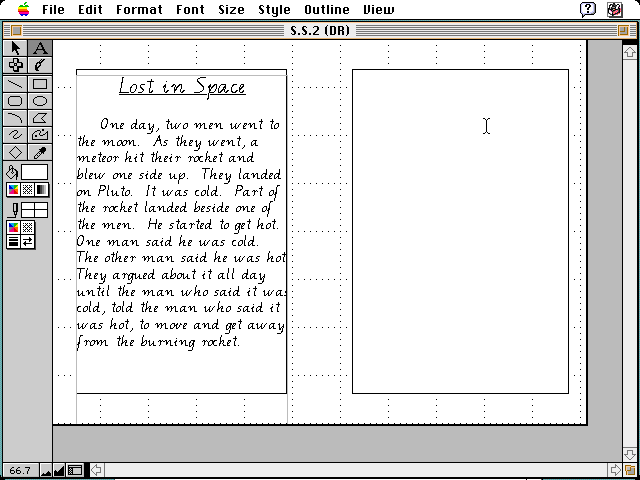
I have a lot of nostalgia for this font. I’d completely forgotten about it but it was everywhere at my school.
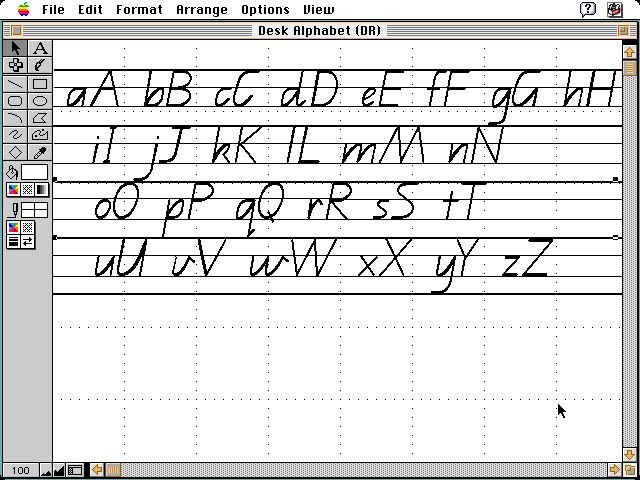
My dad must have printed out these labels to put around the classroom:
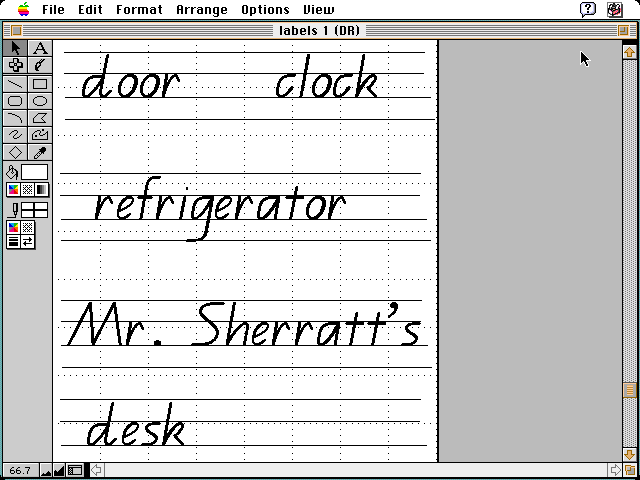
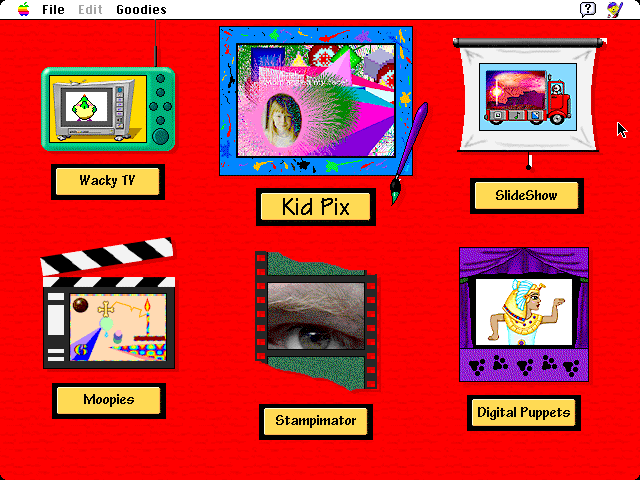
We had Kid Pix!
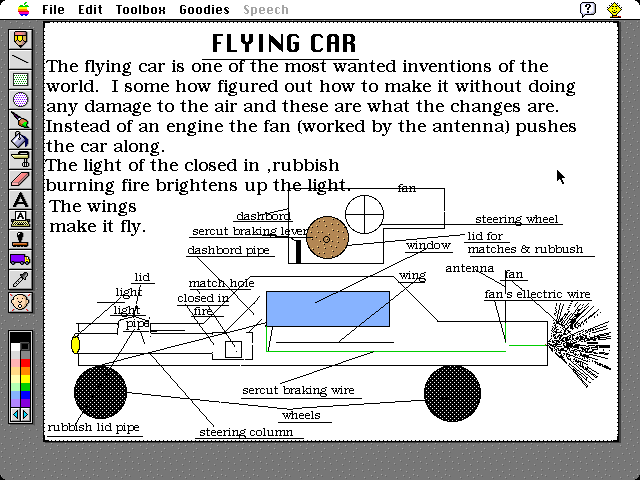
I remember designing this flying car in Kid Pix that would burn rubbish as fuel. Kinda reminds of something from a movie I saw once…
Speckled all over the filesystem were documents like this one. Oddly I don’t remember actually owning a copy of Lemmings as a kid despite being obsessed with playing it on the computers at school (though curiously the full version of Lemmings is in the games folder). Lemmings doesn’t have save files; it just prints a unique code for each level to type in the next time you play. I wrote a bunch of these down on paper and must have typed them up at one point.
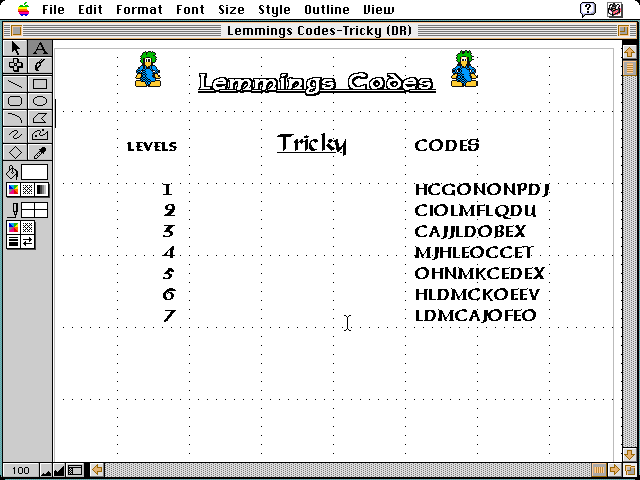
I didn’t actually make it to the end of Lemmings until a few years ago.
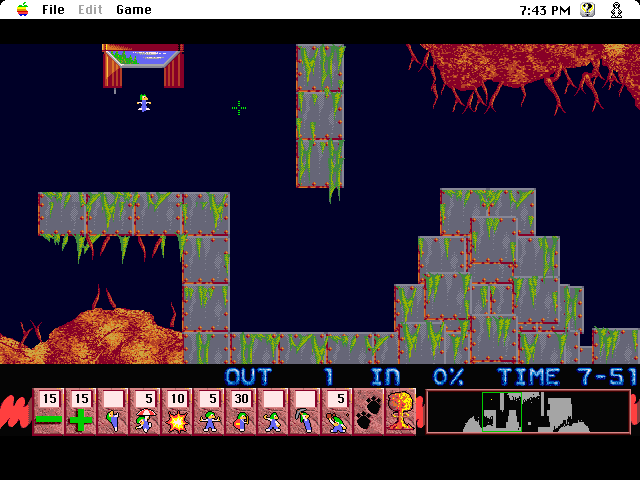
Here’s the “steve” file from the desktop loaded in Kings Quest 7. I (or perhaps my dad?) was most of the way through (we completed it many times though).
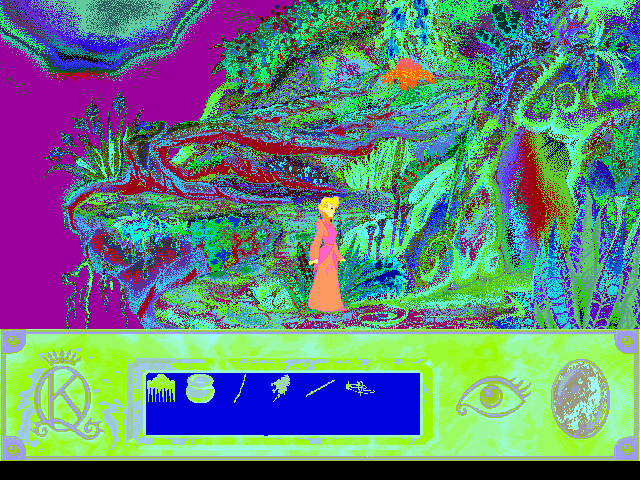
The colours usually didn’t mess up like this on the real hardware. Oddly enough, restarting the emulator with a higher resolution fixes the colours, but now you have to play the game in a window.

To avoid the error loop on startup and to fix some other issues such as the sound not working, I made a fresh install of MacOS System 7 on a new virtual drive and mounted the original disk image as a secondary drive. The “disk1” in the above screenshot is the new boot disk. The “Unix” in the above screenshot corresponds to a directory on the host machine and makes it possible to transfer files between the virtual Macintosh and the real computer the emulator is running on.
Ok so what was up with that “Bad Boy” file from earlier? It’s the file on the left on the window below about halfway down.
Opening the file tries to launch HyperStudio but then it gives an error that the file is not a stack:
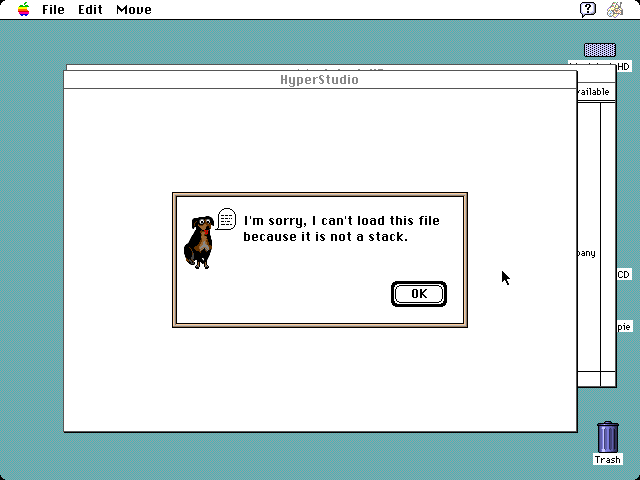
And then it takes you to this screen, asking to insert the “Kingfisher 101 Activities CD”.
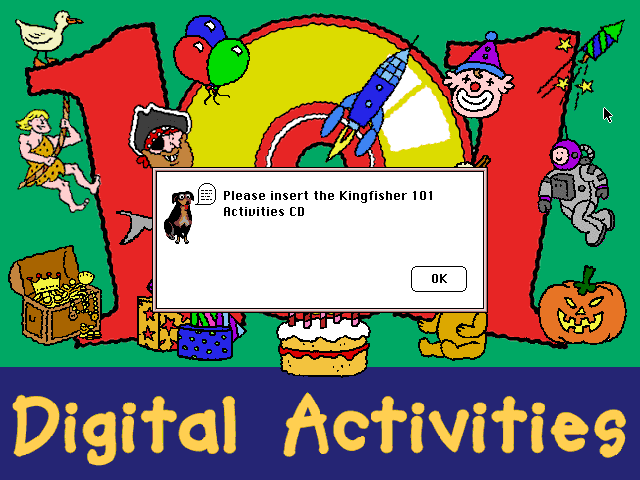
Better do what it says.
The Kingfisher CD contains this program with several mini games.
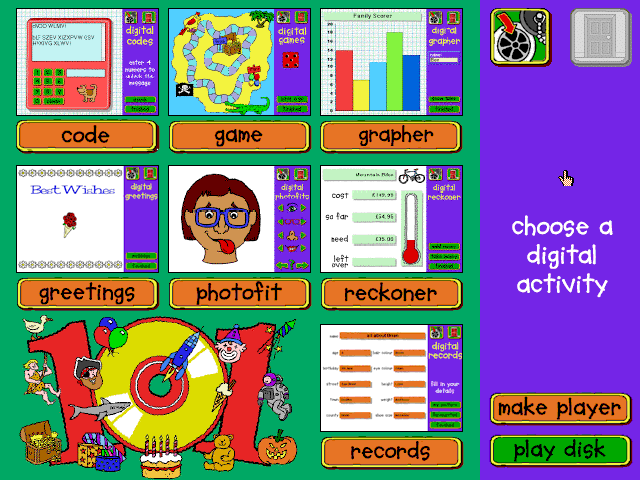
The code game immediately caught my eye, and not for the first time.
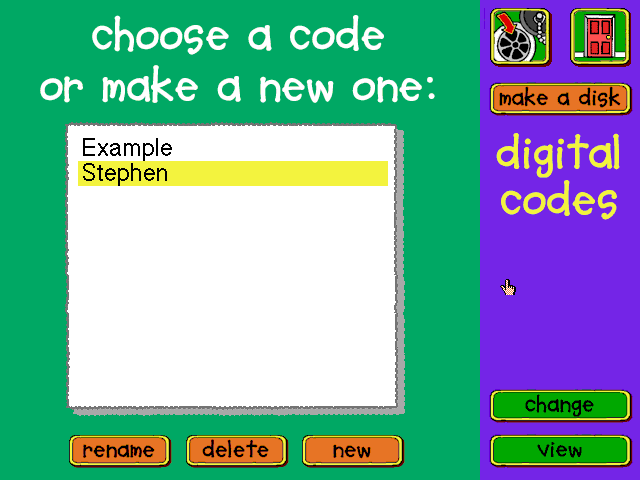
Again this could have been my dad and not me. I have no memory of this game but a secret code from either my dad or myself is a pretty neat find.
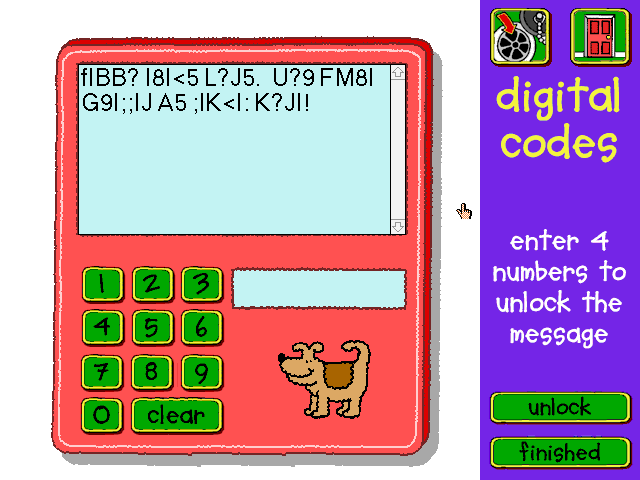
Now what was that code again?
I tried encrypting the alphabet to see if there’s an obvious pattern.

Every time you press the “Lock/Unlock” button the dog barks.
The 4 digit code turns out not to affect the result so the game must be just storing it somewhere and applying the same transformation regardless of the code.
The alphabets above map to the following:
![The code minigame with the encoded alphabet: MLKJIHGFEDCBA@?>=<;;987654 mlkjihgfedcba`_^]\[ZYXWVUT](https://www.gridbugs.org/restoring-my-childhood-family-computer-part-4/kingfisher5.png)
There’s a pretty clear pattern. I started to suspect that re-encoding the secret message would also decode it so I typed out the encoded message and then locked it with an arbitrary key:
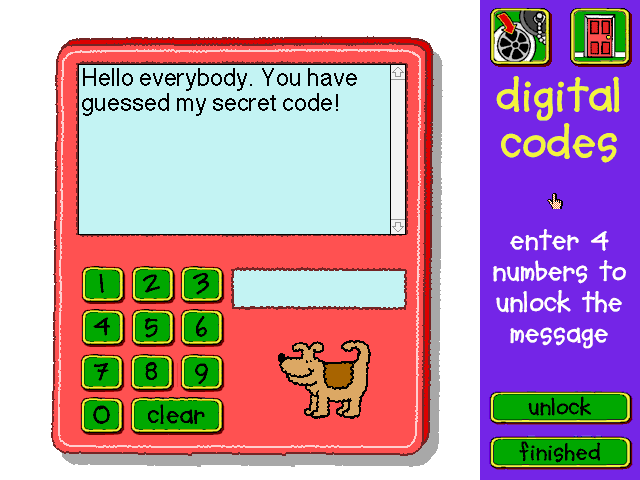
What was I doing again?
Inspecting the raw contents of the “Bad Boy” file in a hex editor didn’t reveal anything useful. I thought maybe opening it in a text editor on the Macintosh might show some useful strings in whatever text encoding it uses, but when I tried it displayed this:
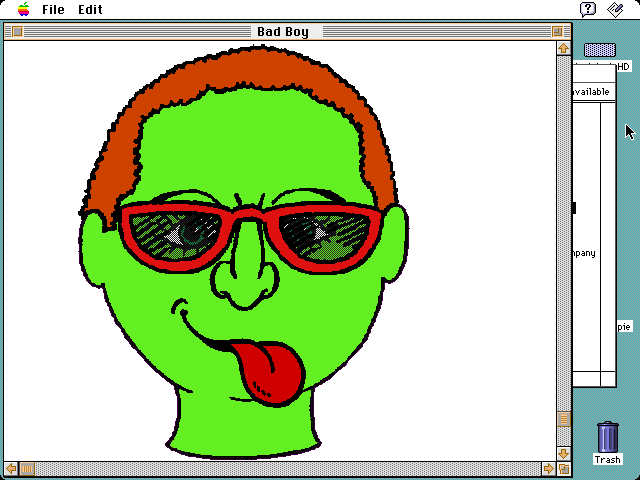
I don’t understand how file types work on this machine. The OS knows (or at least thinks it knows) what program to launch when you double click a file but the files don’t have extensions in their name. Somehow Finder believes this file file is a HyperStudio stack, and when you try to open it in a text editor (TeachText) it correctly recognizes it as an image and displays it in a window, but the current program is still TeachText.
TeachText appears to have been made by Apple so let’s see if the help bubble has anything to say about it.
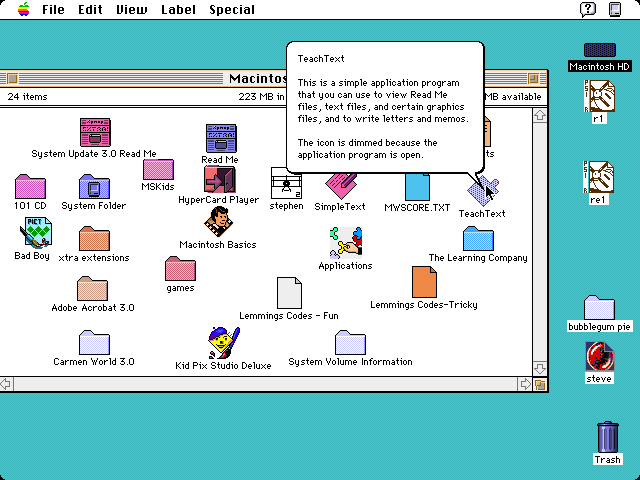
I freaking love help balloons.
So TeachText does know how display certain types of graphics!
But what does this have to do with HyperStudio or the Kingfisher 101 disk?
Well Kingfisher 101 is implemented as a HyperStudio stack. And take a look at the “photofit” game. It’s icon looks a bit like our bad boy.
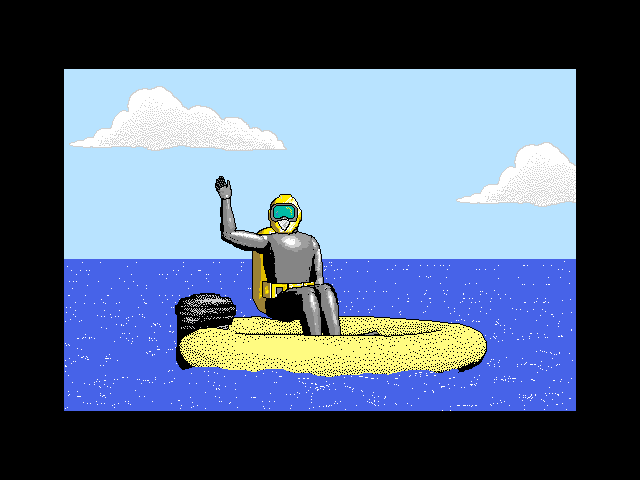
And running that game it’s clear how the bad boy image was created:
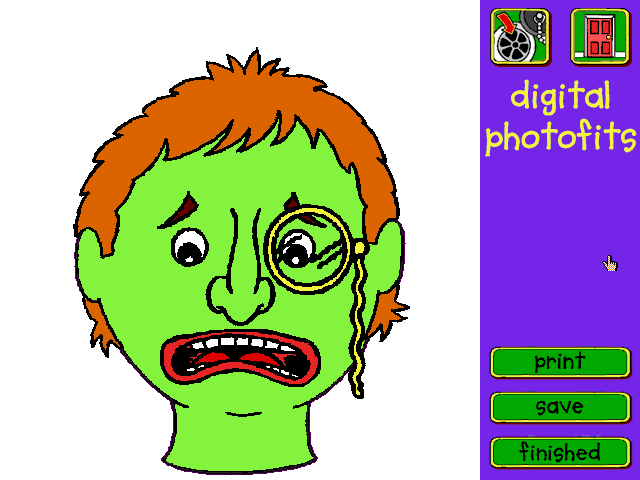
So maybe the OS is keeping track of which program created each file, and it runs that program when you double click the file? And in this case the file was created by Kingfisher 101 (presumably by clicking the “save” button in the screenshot above), but the file is just a regular image. So the OS recorded that the image file was created by Kingfisher (or maybe HyperStudio?) and it’s trying to open the file with that program rather than a program that knows how to display images like TeachText.
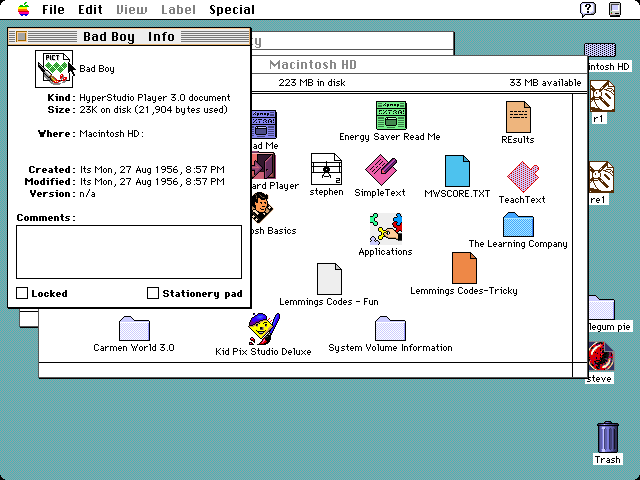
Confusingly there doesn’t seem to be a way to change the kind of a file, so I don’t know how to make it so that double-clicking on it will have it open in the correct program.
I’ve spent many hours exploring this disk. It’s a fascinating look into the history of computing as well as my own past. I found a large collection of my dad’s old work and personal files which I’ve converted to google docs and shared them with family members, and also put together a package with all the files necessary to run our old Mac emulated on Windows, along with disk images for all the games we used to play.
I feel like I was born at the perfect time for experiencing this sort of nostalgia. In the 90s computers were powerful enough to support a wide range of software accessible to most people, ubiquitous enough that you probably had one in your home, but scarce enough that the family had to share. Users had to figure out how to organize their files and software. Through their shared use machines developed a kind of personality.
Computers were simple enough to be easily emulated on modern hardware, and lacked security features that might get in the way. And it’s worth going through the trouble to experience that personality again.
Most desktop apps have been replaced with web apps and physical media with app stores. Nobody is forced to share a computer. OSes abstract more of the details that most people find irrelevant. Devices are locked down far beyond the point of protecting users. Since the 90s computers have arguably improved at letting you do the things you want to get done but I can’t shake the feeling that we’ve optimized away something magical.
That’s all for now. The next step restoring the Macintosh will be trying to get it working with my spare SCSI drive. I got my hands on some MacOS System 7 install disks so barring additional hardware problems I’ll be able to install a fresh copy of MacOS.